
This is step [4/4] of setting up Azure OpenAI Service in your Juma (formerly Team-GPT) account. You can see the full guide here – How to Setup Microsoft Azure OpenAI Service.
This is last step in order to connect your Azure OpenAI service account with Juma (formerly Team-GPT). After this step you will able to use OpenAI's models in the most secure way.
If you're not an admin in your workspace, contact such so they can set it up for your workspace.
- Log into you Juma (formerly Team-GPT) account and click on your workspace name
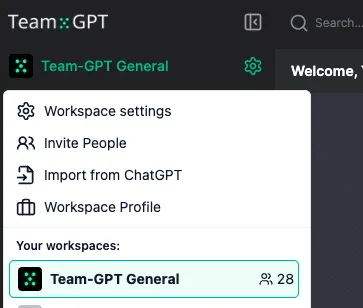
- Click on
Workspace settings - Go to
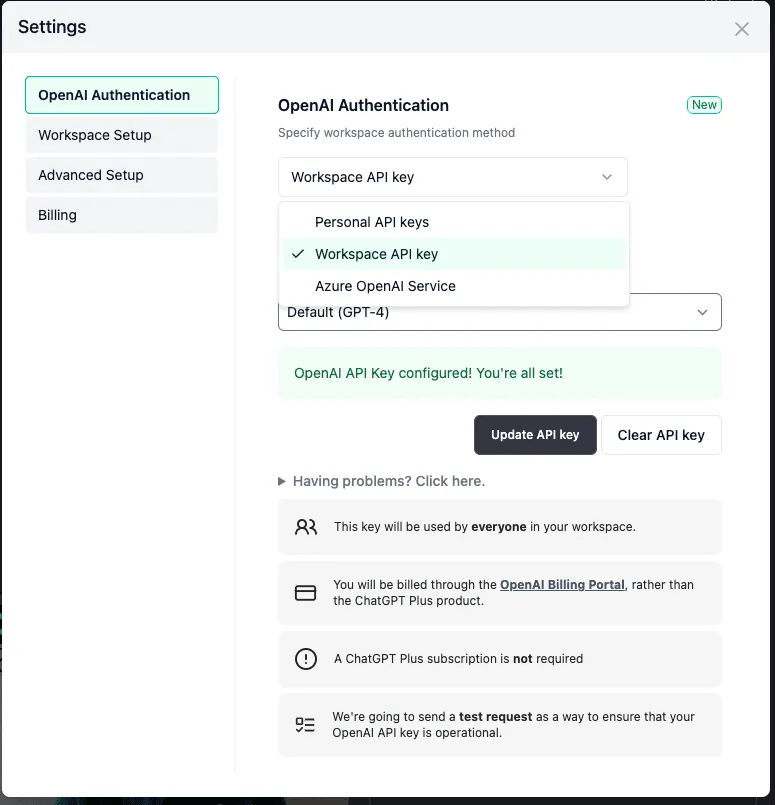
OpenAI Authenticationtab if you are not there already - Under the
OpenAI Authenticationsetting selectAzure OpenAI Service
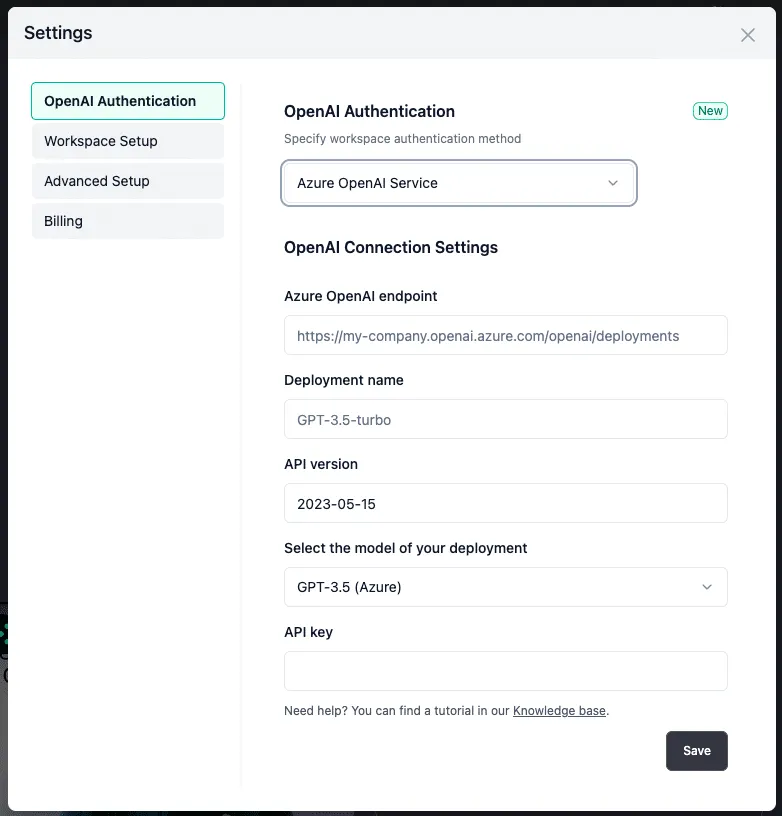
- You have to fill in three fields – endpoint, deployment name and your API key
- Go to https://portal.azure.com/#home and then Azure OpenAI Service
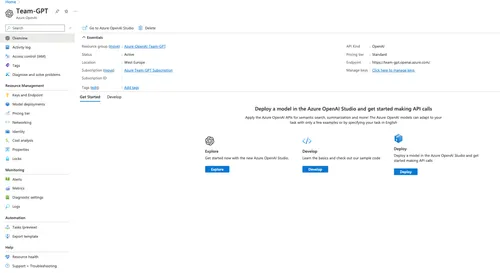
- Click on
Model Deploymentsand thenManage Deployments - Copy the deployment name of your model and paste it in the Juma (formerly Team-GPT) form

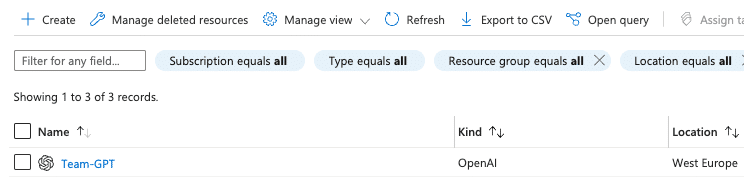
- Go back to
Azure OpenAI Serviceand click on your resource
Azure OpenAI EndpointandAPI key- Click
Click here to manage keys - Copy one of the API keys and paste it in Juma (formerly Team-GPT). Copy your endpoint and paste it in Juma (formerly Team-GPT).
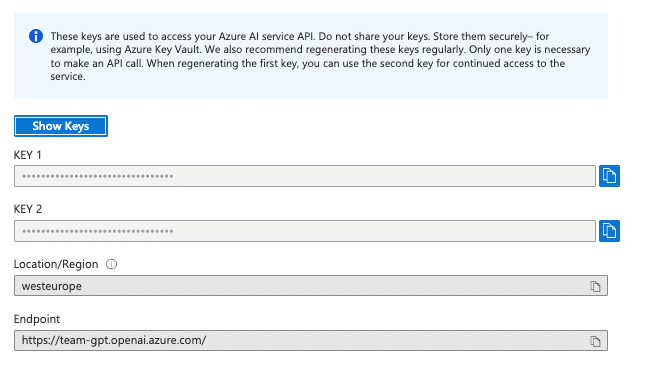
- Click
- Make sure to append
openai/deploymentsjust like in the placeholder of the input.

- Make sure to select the right model of your deployment in the model dropdown model list. After filling the form click on
Saveand you’re ready to use Azure 🙂
P.S. In case you are curious about the API version, please refer to this documentation page https://learn.microsoft.com/en-us/azure/ai-services/openai/reference
- Go to https://portal.azure.com/#home and then Azure OpenAI Service
300 free credits/user
Pro Starter
$49
/mo
For marketers who want AI doing the heavy lifting, not just the typing.
Credit Needs
Enough for
~18
LinkedIn Carousels

~7
Competitor Analysis

~36
GEO Optimized Articles

~34
Google Analytics Reports

Onclusive

Airweave
%20(1).webp)
Zyte API

Zylvie

Zuora Billing

+more
Enterprise
Custom
Dedicated infrastructure, custom contracts, and a team behind your deployment - built for organisations that can't afford to move slowly.
EVERYTHING IN PRO, PLUS
Private cloud deployment - AWS, Azure, GCP
SSO / SAML + platform administration
Security review support + DPA
Custom contract & SLA
Dedicated account manager & priority onboarding
Invoicing + custom billing terms
* Credit estimates depend on Flow complexity